
How to Manage a Noisy Online Classroom
A noisy online classroom is usually not a discipline problem. It is twenty-five open microphones in twenty-five different rooms, one of them next to a television and another next to a main road. Fixing it takes tooling and routine together, and the routine is the half most advice skips.
How do you manage a noisy online classroom?
Let students arrive muted, keep a waiting room on so latecomers cannot walk in mid-sentence, and make raise hand the one agreed route to the floor. Then spend two minutes of the first lesson teaching that routine and hold to it for the term. The settings remove the ambient noise, the routine is what stops students talking over each other.
That split is the whole thing. A muted room with no stated rule buys you about ten minutes: students unmute the moment a thought arrives, forget to mute again, and the room fills back up. The same setup with one sentence attached, “unmute to answer, mute again when you finish”, holds for a year.
So read what follows as pairs: every control needs a convention, because alone each one either fails quietly or makes you the bottleneck.
Why does joining muted plus raise hand beat moderator-only unmute?
Moderator-only unmute puts you in the path of every single contribution. A student with a five second answer has to wait for you to notice them, find them in the participant list and grant them audio, and most will not sit through that twice. Muted arrival plus raise hand keeps the floor quiet while leaving the student one click from speaking, which is the condition spontaneous participation needs.
The difference does not show up in how loud the room is. Both setups give you a quiet class. Only one gives you a quiet class where a student still volunteers a half-formed answer, and half-formed answers are the ones worth teaching into.
The major platforms sit at different points on this. Google Meet’s documentation is blunt about it: “For privacy reasons, you cannot unmute another person. Ask the participant to unmute their audio.” Its Audio Lock is a room-level control rather than a per-person one, so it closes the whole class rather than managing one student. Zoom goes the other way, pairing Mute All with a checkbox that decides whether participants may unmute themselves afterwards.
Other vendors’ behaviour checked August 2026. Host controls change, so confirm before relying on any of it.
Our own side is worth stating plainly, including the part that is not a moderator superpower. Sonacove Meets opens with the microphone off, but that is a per-person preference rather than a room policy: it sits in each user’s audio settings as “Join with microphone off”, and a student who switches it off arrives live every week afterwards. Enforcement is separate, in the moderation panel, where the Audio row reads “Allow participants to unmute their microphone” and can be pointed at everyone, at hosts only, or at a named list of students. That last option means one noisy microphone never needs a class-wide lockdown.
Which classroom convention does each tool need?
Each control below does something real on its own, and each fails in a predictable way when nobody has agreed what it means. The table pairs each one with the sentence you have to say out loud.
| Control | What it does | The convention it needs | What happens without it |
|---|---|---|---|
| Join with microphone off | Students arrive muted by default | “Unmute to answer, mute again when you finish”, taught in lesson one | One student turns it off and arrives live every week after |
| Push to talk | Hold the space bar to speak, release and the mic closes again | “Hold space for a short answer, unmute properly for a long one” | Students unmute and forget to re-mute, which is where most crosstalk starts |
| Waiting room | New arrivals wait until you admit them | Latecomers are admitted at a fixed point, at the end of the current explanation | You admit someone every ninety seconds and lose your thread each time |
| Raise hand | Pins the student to the top of the list, in the order raised | Take hands in order and say the name out loud before inviting them in | Students learn that shouting is faster than the queue, and use it |
| Audio restricted for selected students | Removes unmute rights from named students only | Applied for a stated reason and reversed at a stated time | It reads as punishment with no end, and that student stops trying |
| Mute all | Closes every open microphone at once | Reserved for a hard reset, announced before you press it | Used casually, it teaches the class that the microphone is not theirs |
| Private chat | A channel that costs no audio | Named as the route for anything that does not need voice | It becomes a parallel lesson you are not teaching |
The fifth row is the one teachers get wrong most often. Restricting a student’s audio is reasonable, and it stops being reasonable the moment it has no stated end. “Your mic is off until we finish this exercise” works. Silence with no explanation does not.
How do you set a class up so it starts quiet?
Do the setup once on a reusable room rather than per session, so the defaults follow the class instead of your memory. Name the room after the class, not the date, because the name becomes the URL and a stable URL is what stops students arriving in the wrong place.
- Waiting room enabled on the room
- Room named after the class so the link never changes
- Extra noise suppression switched on in your own audio settings
- Push to talk demonstrated once, out loud, in lesson one
- Moderator rights granted to the second adult if one is in the lesson
- Two minutes reserved for the unmute and raise-hand rule
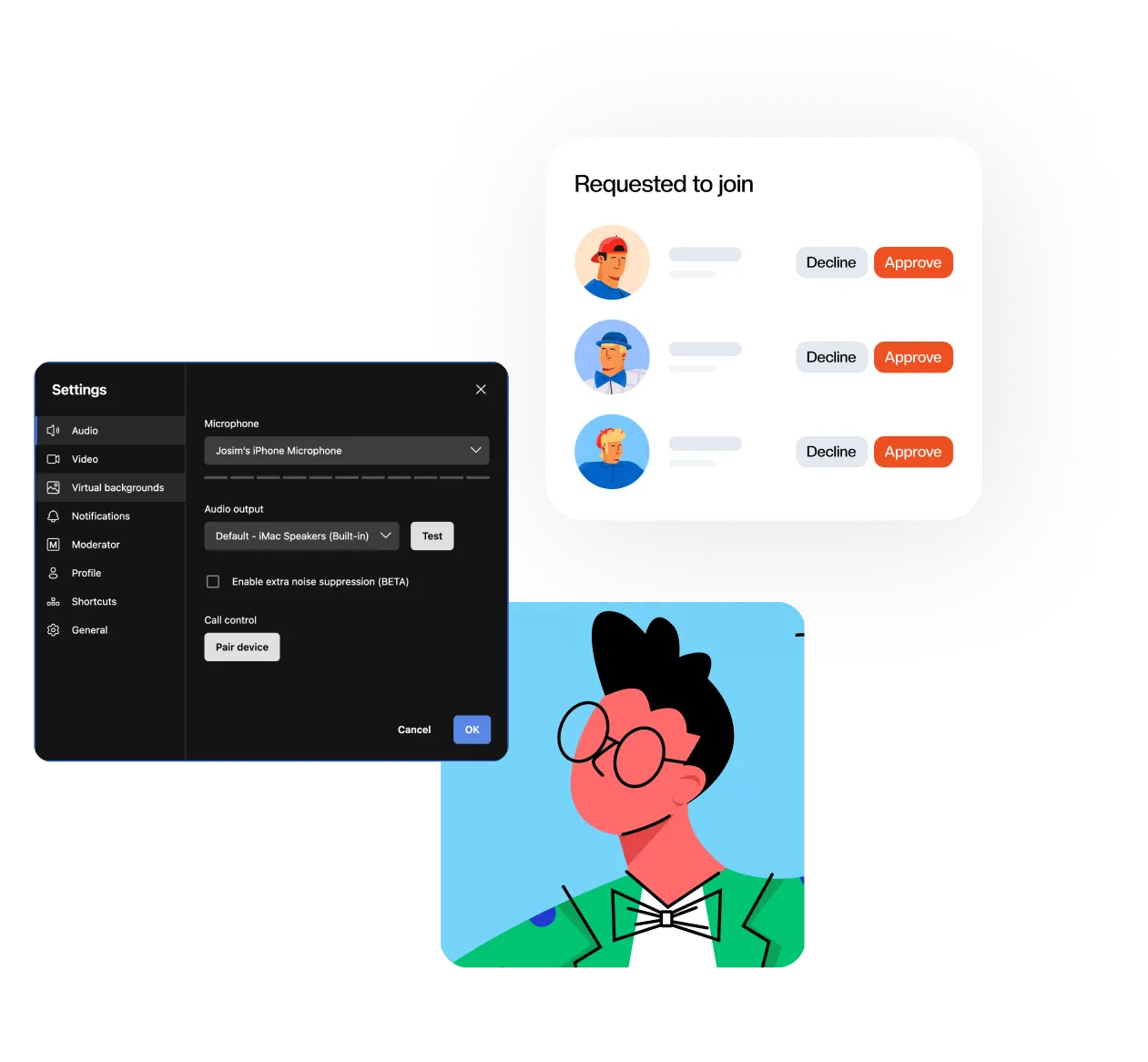
The join-request panel above is where the latecomer convention lives. Admitting students the instant they knock feels polite and costs you the lesson, because each approval interrupts whatever you were explaining. Batch them: finish the point, admit whoever is waiting, carry on. The step-by-step virtual classroom setup guide covers room naming and pre-flight checks in full.
Push to talk is the checklist item teachers skip and later wish they had not. Holding the space bar opens the microphone and releasing it closes it again, so the student who unmutes and never re-mutes stops existing as a category. It takes fifteen seconds.
What do you do when one student’s background noise is the problem?
Mute that student, then tell them in a private message why and when to unmute. Muting without the message is the mistake: their microphone closes for no reason they can identify, and the usual next move is to turn the camera off for the rest of the lesson. The mute is the fix, the message is what keeps them in the room.
Escalate in steps. A private message asking them to check their surroundings often ends it without anyone else noticing. If the noise returns, mute them and say so. If it returns again, restrict their unmute rights until the end of the activity and tell them you have.
One thing you cannot do for them is turn on noise suppression. That toggle lives in each person’s own audio settings, so a student with a fan running has to switch it on themselves. It is a first-lesson instruction, not a mid-lesson fix.
A room problem and a person problem are not the same, and the controls are not interchangeable. Muting everyone because one student has a leaf blower outside punishes twenty-four people for one person’s street.
How do you keep the chat from becoming the new noise?
Give chat a defined job, or it becomes a second lesson running underneath yours. The job that works is “anything that does not need my voice to answer”: spelling, a link, a question a classmate can field, a note that someone’s audio has dropped. Say that once, then read chat at fixed points rather than continuously.
Private messages are the other half. Correcting a student in the public chat costs them something in front of the class, and the same correction sent privately costs nothing. If student-to-student messaging becomes its own distraction, the moderation panel can restrict private chat while leaving messages to the host working. For question-heavy classes, a poll rather than the chat gets an answer from everyone instead of from the four fastest typists.
How do you tell whether the routine is actually working?
Check the meeting afterwards rather than guessing during it. The Sonacove meeting timeline records hand raised, hand lowered, mic on and mic off per participant with timestamps, and the per-student view carries a hand-raise count, so the routine shows up as data rather than as an impression. Two patterns are worth looking for.
The first is hands raised that are never followed by a mic-on event for that student. The queue is forming and you are not reaching it, which is the failure that teaches students to stop raising hands at all. The second is students with a full attendance record and a hand-raise count of zero across several weeks. Those students are not noisy, and that is precisely why a noise-focused setup will never surface them.
What should you read next?
The setup guide covers room defaults and naming before students arrive. If the room is quiet and the silence has become the problem, open the engagement guide.