
How to Set Up a Virtual Classroom
Most instructions for setting up a virtual classroom stop at “create a meeting and send the link”. That covers the first two minutes. The rest of the lesson is decided by choices made before anyone joins: what the room is called, whether the door is guarded, and whether twenty five students are meeting their browser’s camera permission prompt for the first time while you wait.
How do you set up a virtual classroom?
Create one room named after the class, turn the waiting room on, give host powers to whoever is helping you, and send the link out once. Then get students to open that room for two minutes on a day when nothing depends on it, so the browser permission prompts happen before the lesson instead of during it. Everything after that is refinement.
The full sequence, in the order it actually happens:
- Create the room and name it after the class, not the date.
- Set the access mode. For most classes that means the waiting room.
- Decide whether students arrive muted and off camera.
- Promote anyone who needs host powers, before the lesson rather than during it.
- Send the link to students and put it wherever it will live permanently: the syllabus, the LMS, the parent email.
- Run a two minute practice join with the class before the first real lesson.
- On the day, arrive five minutes early with the participants panel open.
Steps 1 and 6 are the ones people skip, and they are the two that cause most of the first-session damage.
Settle one thing before step 1, because it shapes the timetable: how long your tool lets a session run. Zoom’s free Basic plan hosts “free 40-minute meetings for up to 100 participants” as of August 2026, which is shorter than a normal lesson. Find that out now, not at minute 39.
Why should you name the room after the class instead of the date?
Because the room name becomes the URL. A room called year9-maths gives you one link that works forever, so you can paste it into the syllabus once and never touch it again. A room called maths-14-oct gives you a different link every week, and every week is another chance for a student to open the wrong one and sit alone in an empty room while you teach in another.
Name the room after the thing that does not change.
| Room name | What the link does |
|---|---|
year9-maths |
Same link all year. Goes in the syllabus once |
arabic-beginners-tue |
Fine when the class genuinely is “the Tuesday group” |
maths-14-oct |
Dead next week. Guarantees a stale link in someone’s bookmarks |
meeting-2 |
Nobody can tell which class this is, including you in March |
Two details about how Sonacove room names behave, because they change what you should type. Names are case-insensitive, so Year9Maths and year9maths are the same room and a student typing it in lowercase still lands with you. Punctuation that means something in a URL gets stripped, so a room called “Y9 Maths: Set 2” will not keep its colon.
A stable name is also what makes content persistence useful. Turn it on and last week’s chat, polls and shared files are still there this week, which only works if “this room” refers to the same room from one lesson to the next. The whiteboard is the exception: the board lives for the meeting only, so export anything you want to keep before you end it.
The tradeoff is real: a permanent link is one that anyone who ever received it can open again, including the student who left the class in March. That is what the waiting room is for.
Should the waiting room be on for a class?
For any class using a reused link, yes. The waiting room holds arrivals outside the room until you approve each one by name, so a link that got forwarded, or a student from last term, cannot simply walk in mid-lesson. It costs you a few clicks at the start and removes a whole category of problem.
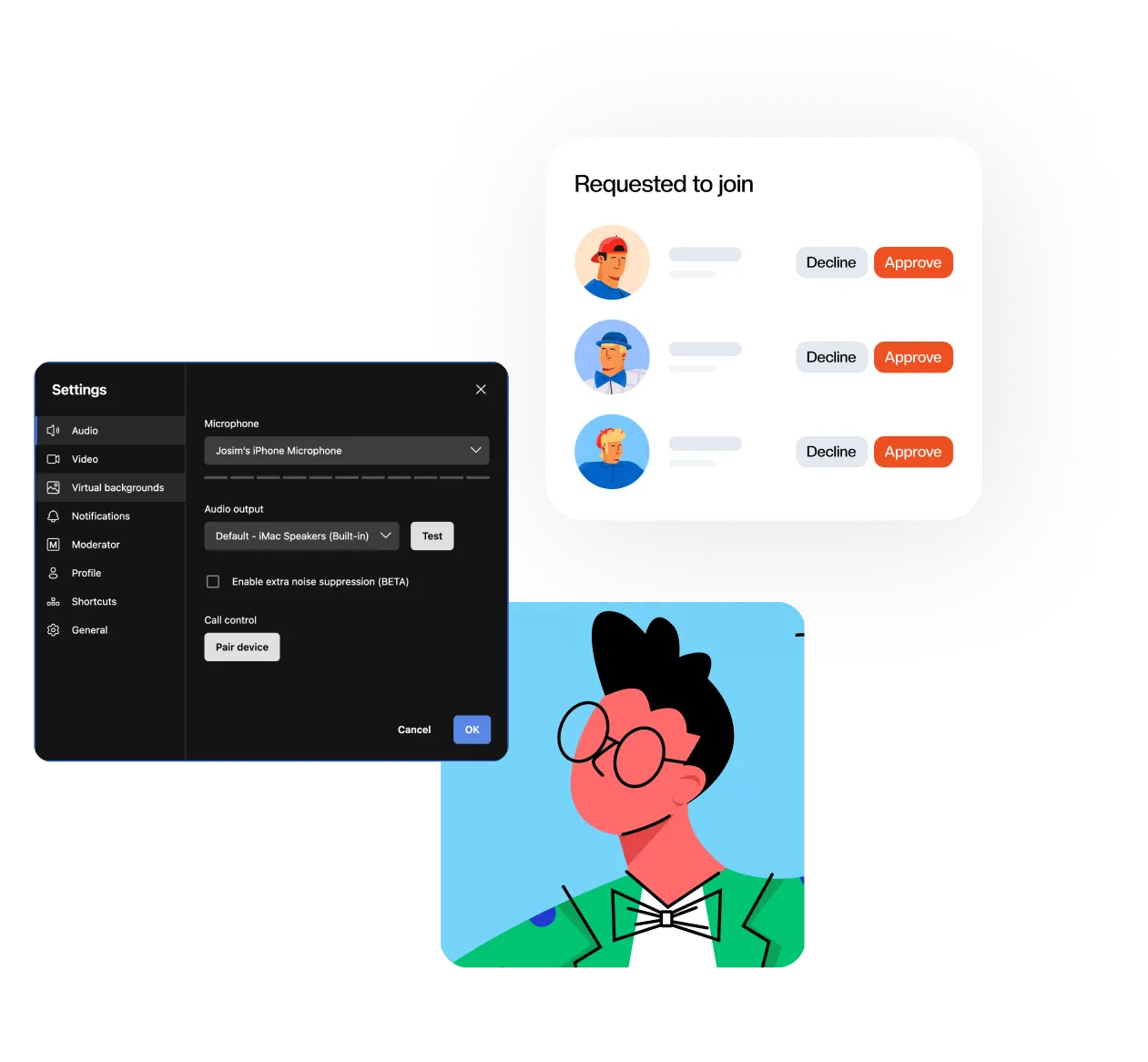
Sonacove has three access modes, and they trade convenience against control:
| Access mode | What happens | Use it when |
|---|---|---|
| Open | Anyone with the link joins immediately | Drop-in help sessions, or a link that only exists in one private place |
| Waiting room | Arrivals queue until you approve them individually | Scheduled classes. This is the right default for teaching |
| Password | Only people who have the password get in | The room must be locked to a known list and you can distribute a password reliably |
Password is the most restrictive setting and also one more thing for a fourteen year old to lose at 8:58am. The waiting room gives you nearly the same control with nothing for students to remember.
Keep the participants panel open for the first five minutes. The most common waiting room failure is not a security one: it is a teacher who switched it on, started teaching, and never saw the four students queued outside.
Do students need to join once before the first real session?
Yes, and this is the highest-return item on the whole list. Browsers ask for camera and microphone permission per site on first use, and MDN’s getUserMedia documentation is explicit that the browser must ask at least the first time before any site can reach a camera or microphone. A student meeting that prompt for the first time while the class waits is the most common cause of a slow start.
Worth knowing: some browsers remember the answer per site, others re-ask more often, and a student who clicks Block by accident has to go into site settings to undo it. Discovering that on a quiet Tuesday is a very different afternoon from discovering it in lesson one.
Send the link a day early with four instructions:
- Open the link in Chrome, Edge, Safari or Firefox. There is nothing to install.
- Click Allow when the browser asks for camera and microphone.
- Type your real name on the pre-join screen.
- Say one sentence, check you can hear yourself come back, then leave.
Two minutes each. You find out who is on a locked-down school laptop that blocks the camera, who has no working microphone, and who typed “asdf” as a display name, on a day when none of it costs teaching time. Students install nothing to join, which is what makes the practice run cheap to ask for, and the reasons that matters on school-managed devices are in our guide to browser based video conferencing with no download.
Which settings should you change before the first lesson?
Five. Sonacove ships with microphones live, cameras on and rooms open, which is correct for a call between two colleagues and wrong for a class of twenty. Change them in the room settings before you send the link, so students get the right behaviour on their first join rather than their second.
| Setting | Set it to | Why |
|---|---|---|
| Join with microphone off | Ask students to set it, above roughly six in a class | Six people unmuting into a kitchen at once is not a class, it is a hum. This is a per-student preference, not a room rule you can enforce |
| Join with camera off | Ask for it on the first lesson and in large classes | Students arrive before deciding to be visible. They can turn it on |
| Access mode | Waiting room | You approve arrivals by name, and a forwarded link goes nowhere |
| Moderator | Promote your teaching aide before the lesson | Someone else watches the waiting room and the chat while you teach |
| Content persistence | On for classes that build across lessons | Last week’s chat, polls and shared files are still in the room. The whiteboard is not: export it before you leave |
While you are in settings, use the Test button beside the audio output selector. Finding out that your browser picked the wrong speakers takes five seconds alone and two minutes in front of a class.
What should you check in the ten minutes before class?
Run the same list every time until it stops being a list and becomes a habit. Most first-lesson disasters are one of these ten items, and all ten are faster to check than to fix live.
- The link in the syllabus opens the right room, tested by clicking it
- Waiting room on, participants panel open, and you know you are the one watching it
- You are in as the host, not accidentally as a guest on a second device
- Microphone and speakers chosen on the pre-join screen, not after joining
- Headphones on, because they are the one echo fix that always works
- Moderator promoted if someone is helping you today
- The tab or document you plan to share is already open
- Whiteboard or slides loaded, so minute one is not a file picker
- Notifications silenced, because a screen share shows every one of them
- A fallback agreed with the class: what they do if you drop out
What usually goes wrong in the first session?
Sound, joining, and the moment a student discovers the unmute button. None of it is exotic, and all of it is faster to fix once you know which likely cause to check first.
- Echo. Almost always two devices joined from the same physical room, or one student on laptop speakers. Mute the duplicate device, ask for headphones.
- You can hear them, they cannot hear you. Your browser picked the wrong output. Settings, audio output, Test.
- Nobody can get in. The waiting room is on and nobody is watching it. Keep the panel open, or promote a co-moderator whose job is the door.
- A student is in the wrong room. They used a link from a previous week. This is the naming convention argument, arriving in person.
- Everyone talks at once. Start muted plus raise hand fixes more of this than moderator-only unmute does. The tools and the classroom conventions each one needs are in how to manage a noisy online classroom.
Write down what broke. The first session is your only clean read on which students have a device problem, and that list is worth more than the lesson plan you did not finish.
What should you add after the first lesson?
Nothing, until you have taught in the room once. After that, add one thing at a time and keep it for at least three lessons, because a tool used once teaches the class nothing except that you are experimenting on them.
The two additions with the best return for the least explaining:
- A whiteboard for teaching anything procedural, where students watch the thing being made rather than a finished screen share.
- Polls in online teaching, which answer the one question you cannot read from faces on a video call: did that land.
Breakout rooms come after both. They change how a lesson feels more than anything else here, and they are far easier to run once a class knows how to mute, unmute and get itself back. Everything available in a Sonacove room is listed on the features page.