
How to Tell If Students Are Distracted in Online Class
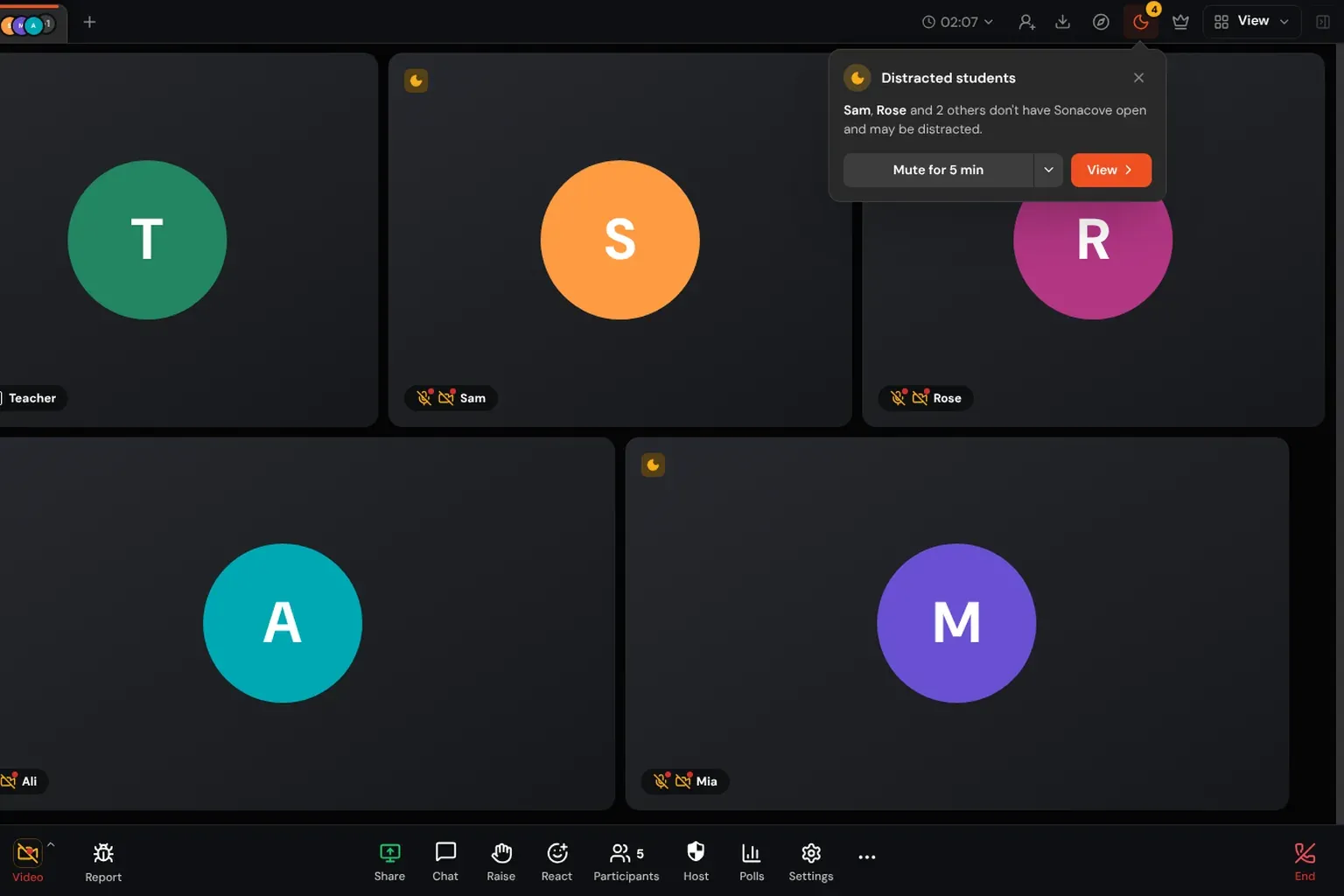
In a classroom you notice the student who has stopped looking at the board. Online you get a row of tiles, and a tile looks the same whether the student behind it is following the lesson or watching something in another tab. Distraction alerts give you back that one signal: whether each student still has the class in front of them.
How can you tell if students are distracted in an online class?
You cannot see a student’s screen, and you should not want to. What you can know is whether the class is the thing on it: whether the tab is open and in front, or hidden behind another tab, another app or a minimised window. Sonacove’s distraction alerts read exactly that, show a small moon on the student’s tile within about three seconds, and send you a private alert if they stay away.
That is a narrower claim than “distracted”, and the product says so in its own wording: a student “may be distracted”. A student who switched to a notes app is away from the class by this measure, and so is one watching a video. The alert tells you where to look. It does not tell you what they were doing, because Sonacove never sees which tab or app they went to.
What counts as being away from the class?
Two things count: the class tab is hidden (another tab, a minimised window, a locked screen), or the class is visible but another app has focus. A glance that lasts under three seconds does not count, so a file picker or a quick look at a message is not an event. A student who is presenting their screen is never counted, since leaving the class window is the point of presenting.
| What the student does | Moon on their tile | Alert to you |
|---|---|---|
| Switches to another browser tab | After about 3 seconds | After 20 seconds away |
| Minimises the window | After about 3 seconds | After 20 seconds away |
| Clicks into another app, class still on screen | After about 3 seconds | After 45 seconds away |
| Locks the screen or the laptop sleeps (desktop app) | After about 3 seconds | After 20 seconds away |
| Shares their screen | Never | Never |
| Looks away for under 3 seconds | Never | Never |
As of November 2026, in the browser and the Sonacove desktop app. We have not yet verified the mobile apps, so treat a student on a phone as not covered for now.
The 45 seconds for another app in front is deliberate. A student with the lesson on one side of the screen and their notes on the other is the most common case of “another app in front”, and it is usually a good student, not a distracted one. A hidden tab is the clearer signal, so it gets the shorter wait.
If you are curious how a browser knows a tab is hidden, it is a standard part of the web platform, the Page Visibility API. Nothing is installed on the student’s device beyond the class itself.
How do you turn distraction alerts on?
Click the moon in the top bar of the meeting, next to the crown, and switch on Distraction alerts. Alerts are off at the start of every class, so nothing is checked on any student’s device until you choose to turn it on, and turning it off stops the checking at once. Only you and any co-hosts you have made see the moon.
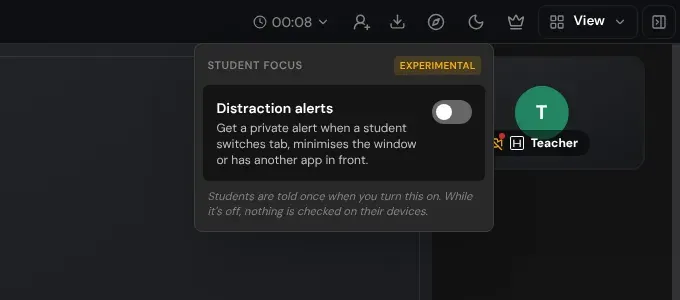
The feature is marked Experimental, and we mean that. The behaviour described here is what ships today, and the timings may change as we hear from teachers using it in real lessons.
Once it is on, the same moon menu lists who may be distracted right now and for how long, so you can check the whole class in one place without scanning every tile.
What do you see when a student leaves the class?
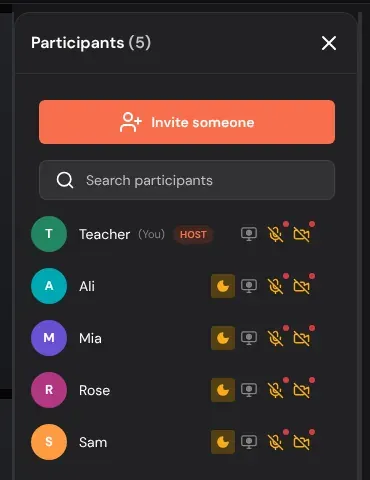
A moon appears in the top left corner of the student’s tile and on their row in the participants list, and the moon in the top bar shows how many students are away. If a student stays away past the threshold in the table above, a card drops down from the top bar naming them. It says the student “doesn’t have Sonacove open and may be distracted”.
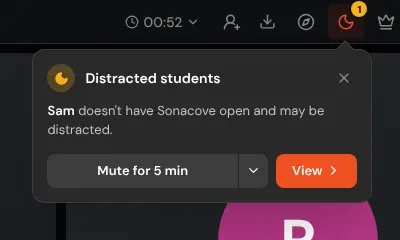
When several students leave around the same time you get one card, not a stack. It names up to three and then counts the rest, and it rewrites itself as students come and go. It takes itself down when everyone it named is back, or after a minute.
In a one-to-one lesson, the student is usually the big view on your screen, so the moon shows there as well as on their tile.
What can you do with the alert?
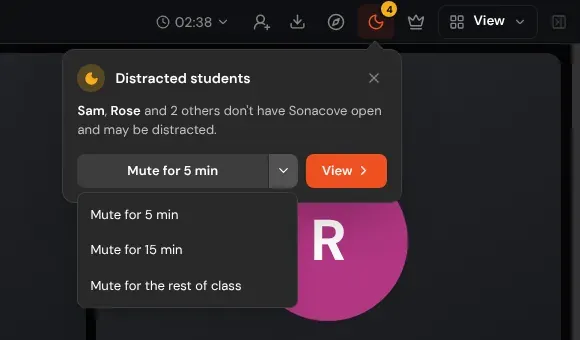
Three things: snooze it, open the list of who is away, or close it. Snoozing is the one to know, because there are lessons where students are meant to be elsewhere for a while, such as reading a source in another tab, and the alerts would only be noise.
| Button | What it does |
|---|---|
| Mute for 5 min | No new alert cards for five minutes. The moons stay on the tiles. |
| ▾ next to it | Mute for 15 minutes, or for the rest of the class |
| View | Opens the participants list with a moon beside each away student, or the Students tab if you use class engagement |
| × | Closes this card. The same student is not alerted again until they come back and leave again. |
What do students see?
Each student gets one short notice when you turn alerts on: “Your teacher is notified if you switch away from this class.” Nothing else changes on their screen. Students never see a moon on anyone’s tile, never see a classmate’s alert, and never see a classmate’s time away.

That notice is not a formality. Telling students up front changes the feature from surveillance into a shared rule, and it does most of the work on its own: a student who knows the teacher will notice a hidden tab mostly does not hide it.
How should you use distraction alerts fairly?
Treat a moon as a prompt to check in, not as evidence. The signal cannot tell a student watching a video from a student looking up a word, and the honest way to use it is the way you would use a glance across a physical room.
- Say at the start of the term that alerts are on in your lessons and why
- Mute alerts for any activity where students are meant to be in another tab
- Check in privately (a chat message or a word after class), not in front of the group
- Ask before assuming. “I saw you stepped away, everything all right?” gets an honest answer more often than an accusation
- Do not grade from time away alone
Alerts work best alongside a lesson that gives students a reason to stay. If several students drift at the same point, that tells you more about the activity than about them. Our guide on keeping students engaged in online classes covers what to change.
Where does time away show up after class?
On the class report, each student’s time away is in a Distracted column on the meeting page, beside their attendance. Only the class’s teachers and your organisation’s owners and admins see every student’s figure. A student opening the same report sees only their own.
The column only appears for classes where alerts were on, and it is separate from the student engagement score, which it does not change. Stretches shorter than about ten seconds are left out, so a student flicking between tabs does not build up a misleading total, and leaving the meeting ends a stretch of time away.
How does this compare with Pencil Spaces?
Pencil Spaces had distraction notifications first, and our alert is modelled on theirs: the wording, the moon and the timed snooze all follow its lead. Their help article says their alerts are hidden when five or more people are in a Space, which suits small-group tutoring.
As of November 2026, from Pencil Spaces’ own help article.
The real difference is class size. Sonacove’s alerts keep working in a full class, which is where a teacher has the least chance of noticing a hidden tab on their own. If you teach one-to-one or in small groups and already use Pencil Spaces, its version will do the job.
What should you read next?
If students drift at the same point in every lesson, the engagement guide is the place to start. If the report has you wondering how participation is scored, the engagement score article explains it.
- How to keep students engaged in online classes, for what to change when the moons cluster
- How the student engagement score is calculated, which time away does not affect
- How to manage a noisy online classroom, for the classroom routines that sit alongside alerts
- Sonacove Meets features, for the rest of the teaching tools