
Online Classroom Platform for Teachers: A Buying Checklist

Most platform comparisons are written for whoever signs the contract, not for whoever teaches the lesson. The result is a feature list that demos beautifully and then costs you ten minutes at the start of every class because one student cannot get into the room. What follows ranks the criteria that decide whether an online classroom platform for teachers is worth switching to, and gives you a way to score any tool before the trial runs out.
What should teachers look for in an online classroom platform?
Rank joining friction first, in-lesson control second, and after-class records third. A student who cannot get into the room learns nothing, and a room you cannot quieten teaches nothing, so those two decide whether the rest of the feature list ever gets used. Integration directories, AI summaries and participant caps sit below all three.
Here is the order that holds up across private tutoring, language schools and small academies.
- A student can join on the device they own, in under a minute. No account, no install, no app store password they forgot in March. This one criterion removes more tools from the shortlist than the other five combined.
- You can take the room back in one action. Mute everyone, and have it stay muted until you decide otherwise.
- The link never changes. One address per class, shared once, reused every week. If the platform mints a new link per session, you will spend the rest of the year resending it.
- You can see what happened after the lesson. Who attended, for how long, and who said nothing for fifty minutes.
- It recovers from a dropped connection. Home broadband fails weekly somewhere in any class of fifteen.
- It costs you close to zero admin time. Every minute spent on seats, invites and settings is a minute not spent planning.
Notice what is missing. Video quality is not on the list, because every serious platform is now good enough on a normal connection, and the ones that are not fail the reconnection test anyway.
How do you test any classroom platform in five minutes?
Open the trial on your laptop, then join the same meeting from your phone in a private browser window as a second, fake student. Almost every criterion below can be checked from those two devices in one sitting, before you commit to anything. Score each row pass or fail and compare the totals, not the marketing pages.
| Criterion | Why it matters | How to test it in five minutes |
|---|---|---|
| Guest joins without an account | Younger students often have no account to sign in with, and adult learners resent making one | Open the class link in a private browser window. Count the taps between the link and being in the room |
| Guest joins without an install | School-managed and library machines block installs outright | Refuse every prompt to open or download an app. If you cannot get in, neither can a student on a locked-down device |
| Mute that holds | A class that can unmute itself will, usually at the worst moment | Mute the second device from the host controls, then try to unmute from that device |
| Waiting room approval | Stops the wrong person walking into a link that has been forwarded | Rejoin under a name you do not recognize. You should get an approve or decline prompt, not silent entry |
| Stable room link | Determines whether you resend a link 40 times a year or once | Note the URL, end the meeting, start it again. Compare |
| Raise hand with a visible queue | Turn-taking collapses without an order everyone can see | Raise a hand from the second device and check the host view shows position, not just an icon |
| Breakout rooms, assigned randomly | Manual assignment for 20 students is unusable mid-lesson | Create three rooms, assign randomly, broadcast a message, close them. Time it. Over a minute is too slow |
| Whiteboard that persists | A board wiped between sessions cannot carry a topic across weeks | Draw something, leave the meeting entirely, rejoin. Is it still there? |
| Screen share readable on a phone | A large share of students join from a phone | Share the document you actually teach from and read it on the second device |
| Private chat | Quiet students correct themselves in private long before they will out loud | Send a host-to-participant message and confirm it stays out of the main chat |
| Attendance without exporting | Chasing a register manually is the most common hidden cost | End the meeting, then find who joined and for how long |
| Reconnection | Decides whether a dropout costs 10 seconds or the rest of the lesson | Turn wifi off on the second device for ten seconds |
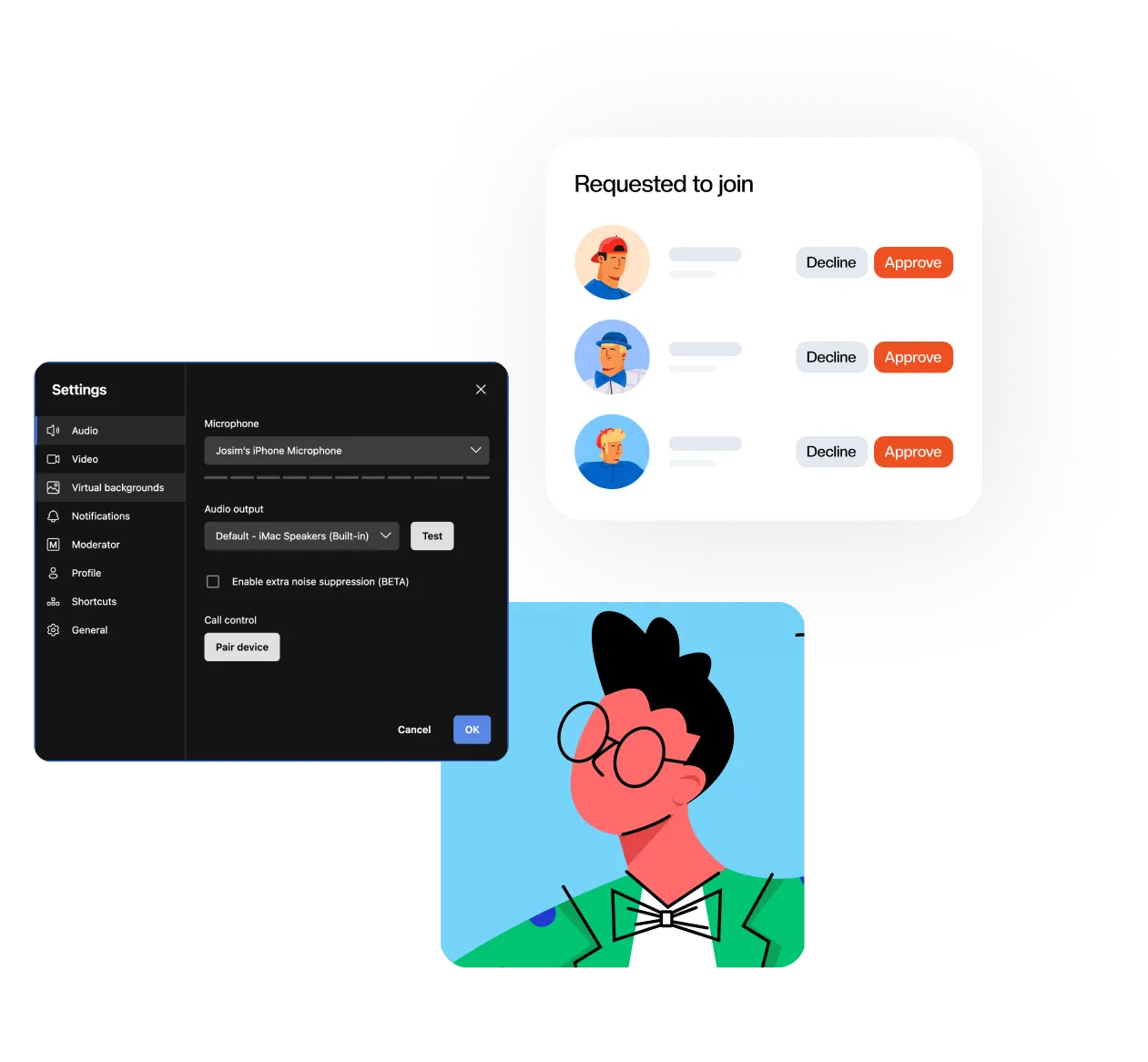
Two of these tests share a screen. In Sonacove Meets the moderator settings and the waiting room queue sit side by side, so mute behavior and admission control get checked in one pass.
If you want the full sequence written out as a first-session runbook rather than a scoring exercise, the step-by-step guide to setting up a virtual classroom covers the room naming convention and the pre-flight checks.
Do free plan time limits matter for a real timetable?
They matter more than the headline participant caps, because a 40 or 60 minute ceiling lands in the middle of a normal lesson. A 50 minute class on a plan that cuts off at 40 minutes means every session ends with a scramble to rejoin. Check the group-call limit rather than the one-to-one limit, since group is what a class actually is.
| Platform | Free plan, group calls | Free plan, 1:1 | Participant cap |
|---|---|---|---|
| Zoom Basic | 40 minutes | No duration limit | 100 |
| Google Meet, free edition | 60 minutes | 24 hours | 100 |
| Microsoft Teams, free | 60 minutes | No duration limit | 100 |
As of August 2026, taken from vendor documentation: Zoom meeting duration limits, Google Meet features and limits and Microsoft Teams Free subscriptions. Vendor limits move, so check before relying on any row.
A quieter limit sits on the same page of the decision. Google’s documentation states you need a Google Account to create a video meeting, and a Workspace administrator decides whether people outside the organization can join at all (Google Meet requirements). For a school already running Workspace that is an advantage. For a tutor whose students span four countries and three email providers, it is why the first lesson starts late.
What should a platform show you after the lesson ends?
At minimum: who joined, when they left, and some signal of whether they participated. Attendance alone answers the parent question. Participation answers the teaching question, which is the harder one online, because you cannot read a room through 20 muted tiles.
Sonacove Meets records this per class and per student: attendance rate, average engagement, retention (whether they stayed to the end) and a participation breakdown across voice, chat, polls, reactions and hand raises. The pattern worth looking for is a student with high attendance and near-zero voice and chat, which is the one that never shows up in a register.
We put a line at the bottom of every student report that reads “This report reflects engagement signals only, not academic grades”, and it is there deliberately. A hand-raise count is not evidence of learning, and a platform presenting engagement percentages as attainment is selling you a number you should not act on alone. Two honest limits on our side: the organization-wide view is currently restricted to owners and admins, and per-teacher analytics are still being expanded.
Which features do vendors push that teachers rarely need?
Participant caps in the hundreds, webinar modes, integration directories and virtual background libraries. These are enterprise procurement criteria that survived into education pricing pages unchanged. A class of 18 is not helped by a 1,000-seat ceiling.
Some of the frequently promoted features do earn their place, so be fair about which. Recording genuinely matters for students who miss a lesson or revise before an exam. Breakout rooms matter enormously for language teaching and barely at all for one-to-one coaching. Background blur is worth more than it sounds, because it is often the difference between a student turning their camera on and keeping it off.
The test for any feature on a pricing page is simple. Ask when in a lesson you would reach for it, and how many seconds you have to do so. If the answer is “between activities, in about ten seconds”, and the feature needs four clicks and a settings page, it will not get used in week three however good the demo was.
How much admin work does the platform create for you?
Count the recurring work, not the setup work. Setup happens once, but issuing links, chasing joiners, resetting rooms and reconciling attendance happen every single week, and that is where a platform quietly takes an hour a month back from you.
Recurring scheduling is the clearest example. If you teach Tuesdays and Thursdays at 18:00 Istanbul time, the platform should hold that as one booking with a timezone and a set of weekdays, not as 80 separate calendar entries. We cap recurring schedules at one year from the start date, and the server rejects anything longer, because bookings further out than that are almost always a typo in a date field rather than a real plan.
The second recurring cost is people management. Adding a student should be one email address and one role, not a license assignment. Count the steps during the trial, then multiply by your actual mid-term churn.
Worth knowing: browsers ask for camera and microphone permission on first use, per site. A student meeting that prompt for the first time while the class waits is the most common cause of a slow start, whichever platform you choose.
Where does Sonacove Meets fit on this checklist?
It scores well on the first two ranked criteria and on admin overhead, which is what it was built around. Students join from a browser link with a display name and no account, moderation and waiting room controls are one action from the toolbar, and rooms keep the same address across every session. It is one reasonable option, not the only one.
It is the weaker choice in some situations, and pretending otherwise wastes your trial. A school already standardized on Google Workspace with managed student accounts gets identity, calendar and single sign-on effectively for free by staying with Meet, which is worth more than a shorter join flow. If you need gradebooks, assignments and submissions, this is a classroom rather than a learning management system, and you will still need something alongside it.
No platform on your shortlist will win every row of the table above. Decide which two rows you cannot compromise on, score against those, and treat the rest as tiebreakers. If browser joining is one of your two, the explainer on browser-based video conferencing with no download covers what actually breaks on school-managed devices.
What should you read next?
Work through the setup guide first if you are choosing a platform this term, since it turns this checklist into a running classroom. The pages below cover the parts of the decision that need more than a table row.
- How to set up a virtual classroom, including the room naming convention that makes links reusable
- How to manage a noisy online classroom, for the mute, waiting room and raise-hand conventions behind criteria 3 to 6
- Browser-based video conferencing with no download, on why installs fail on locked-down devices
- The Sonacove Meets feature list, if you want to score us against the table above
- Plan and platform comparison, for what is included at each tier